make preferable
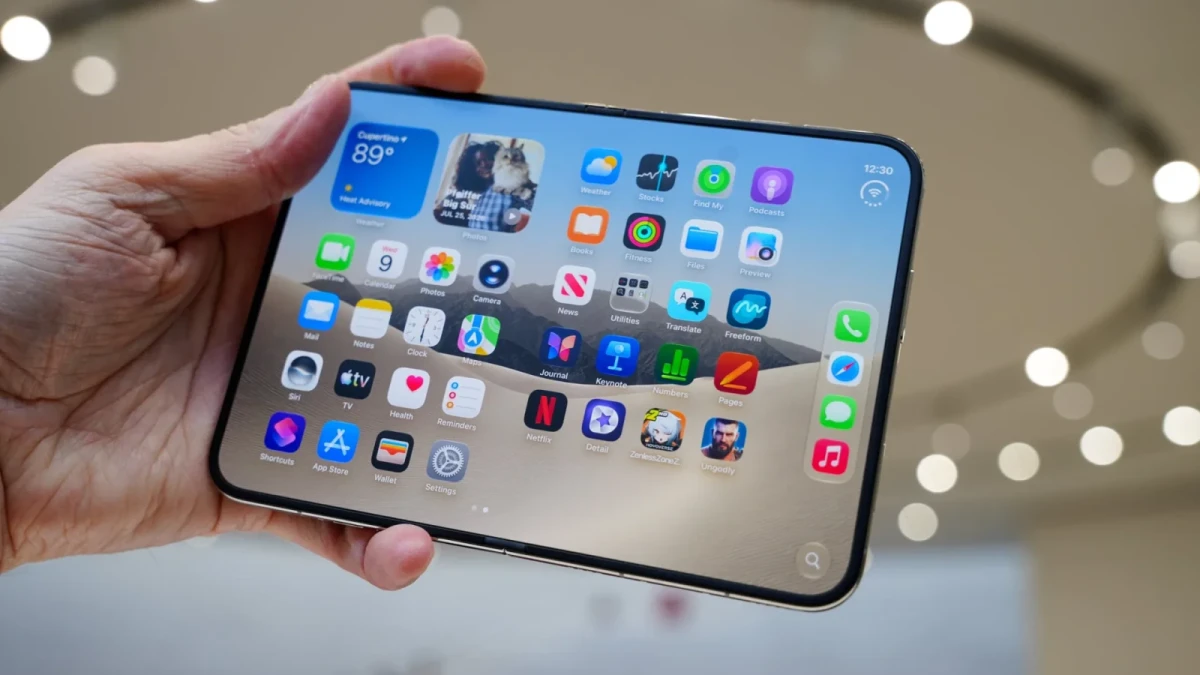
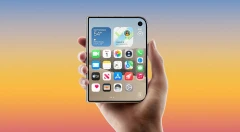
Apple’s first foldable smartphone, the iPhone Duo, offers a new way to interact with an iPhone. But some aspects of its design take some getting used to: Touch ID replaces Face ID, the wide screen calls for additional controls, and photography comes with new capabilities. TechCrunch has rounded up nine settings to make the device more comfortable to use day to day.
How to make unlocking with Touch ID easier
Unlike current non-foldable iPhones, the Duo does not support Face ID. To unlock the smartphone, confirm Apple Pay purchases, and authenticate in apps, you need to use the fingerprint scanner on the side button. With the foldable design and the various ways you can hold the device, this unlocking method takes a little getting used to.
1. Register multiple fingerprints.
On a regular iPhone, many people stick to one or two fingerprints. For the Duo, it is better to add more: depending on how you hold the smartphone, different fingers on either hand may be able to reach the Touch ID button.
Try holding the device in different positions—unfolded and folded, vertically and horizontally. Then register the fingers that feel most comfortable to use in each case.
You can find this setting under Settings → Touch ID & Passcode → Add a Fingerprint.
2. Unlock your smartphone with Apple Watch.
If you have an Apple Watch, you can set it up to unlock your iPhone Duo automatically. This saves you from having to find a comfortable finger position on the scanner every time.
For the feature to work, the watch must be protected with a passcode and be near the phone. You can enable it under Settings → Touch ID & Passcode → Unlock with Apple Watch.
3. Enable unlocking without pressing the button.
The Rest Finger to Open feature lets you unlock the device simply by touching the Touch ID sensor, without physically pressing it. This is an accessibility setting, but it can also be useful for everyday use.
Some users find this method faster and more convenient, while others prefer the feel of a full button press. You can try both options under Settings → Touch ID & Passcode → Rest Finger to Open.
Settings for easier navigation and control
4. Turn off fixed-position volume controls.
By default, the iPhone Duo’s volume buttons retain their functions regardless of the device’s orientation: Volume Up always raises the volume, and Volume Down lowers it.
But when rotating and folding the smartphone, many people find it more convenient if the button functions change with the device’s position. This keeps the volume-up button on the top or right, and the volume-down button on the bottom or left.
To do this, turn off fixed-position controls under Settings → Sounds & Haptics → Fixed Position Volume Controls.
5. Assign screenshots to a double or triple tap on the back.
The usual way to take a screenshot on the Duo is to press the side button and one of the volume buttons simultaneously. But the smartphone’s size and design mean this is not always convenient with one hand.
Instead, you can use Back Tap. It lets you assign a specific action to a double or triple tap on the back of the device. Taking a screenshot is one of the available actions.
You can find the setting under Settings → Accessibility → Touch → Back Tap. There, select Double Tap or Triple Tap, then assign the “Screenshot” action. You will find it in the “Device” category.
A triple tap may be preferable, as it reduces the chance of taking a screenshot accidentally.
6. Configure Reachability.
This feature is designed for one-handed use of a large-screen smartphone. On regular iPhones, it lowers the top portion of the interface so you can reach it more easily with your thumb.
The iPhone Duo presents a different challenge: its wide, passport-like shape makes it harder to reach the opposite edge of the screen. Reachability therefore works differently here, letting you bring one side of the interface closer by swiping from the left or right edge.
The feature is enabled by default. If you activate it accidentally and find it gets in the way, you can turn it off under Settings → Accessibility → Touch → Reachability.
7. Set the smartphone to lock automatically when folded.
If you usually unfold the Duo to use it and fold it when you are done, you can automate screen locking. There is no built-in setting for this yet, but you can easily create the required action in the Shortcuts app.
To do this:
1. Open the Shortcuts app and tap the plus icon.
2. Go to Automation to create an automation.
3. Under Display, find the “Opened or Closed” condition.
4. Select “Closed,” which corresponds to closing the device.
5. In the search bar at the bottom, find the “Lock Screen” action and add it.
The screen will then lock automatically when you fold the smartphone. If you no longer need this feature, you can delete the automation.
Additional camera features
8. Set up quick access to camera tools.
In the Camera app, you can choose which controls appear above the viewfinder. This lets you put your most-used tools in plain sight so you do not have to search through menus while taking photos.
Open the Camera app, tap the six-dot Camera Controls menu in the bottom-right corner, then select the plus icon. You can then add the controls you need—such as flash, Live Photos, or Night mode—and rearrange them.
This option was introduced in the latest iOS update and is not exclusive to Duo owners.
9. Turn off the flash for automatic Smart Take photos.
Smart Take lets you take group photos and individual portraits without using a timer. Simply place the smartphone on a stable surface and activate the mode. The camera detects movement and changes in poses, then chooses the moment to take a photo.
However, there is one detail that may not appeal to everyone: the flash blinks every time the camera automatically takes a photo. This provides a visual signal that a photo has been taken, but it can be distracting in some situations.
If you prefer to shoot without these flashes, turn them off under Settings → Camera → Flash During Capture.