make preferable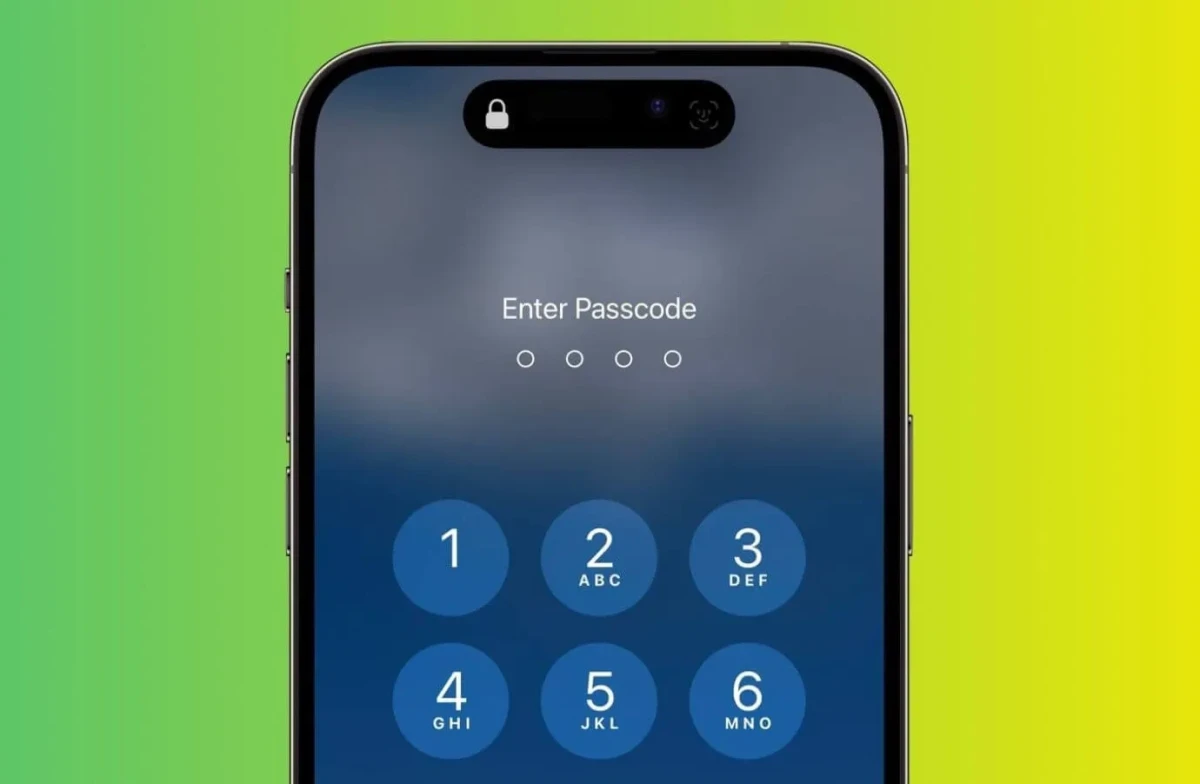
A passcode protects your iPhone from unauthorized access to photos, messages, apps, and other personal data. If someone else has learned your current combination or you want to replace a short code with a more secure one, you can change it right in the smartphone settings.
In this article, we explain how to change the passcode on an iPhone, what options are available, and what to do if you’ve forgotten the old code.
How to change the passcode on iPhone
You don’t need a computer or special apps to change the password. All the necessary settings are located directly on the iPhone.
1. Open Settings.
2. Select Face ID & Passcode or Touch ID & Passcode — the name depends on your iPhone model.
3. Enter your current passcode.
4. Tap Change Passcode.
5. If necessary, enter the old code again.
6. Create a new code and enter it.
7. Enter the new code again to confirm.
After that, the next time you unlock your iPhone, it will use the new combination.
If Face ID or Touch ID is set up on your smartphone, they will continue to work. However, biometrics do not completely replace the passcode: in some situations, iPhone will still require you to enter it.
What passcodes you can set on iPhone
By default, iPhone offers a six-digit numeric code. But when changing it, you can choose another option.
To do this, on the screen where you enter a new code, tap Passcode Options. Depending on your iOS version, the following may be available:
· four-digit numeric code;
· six-digit numeric code;
· custom numeric code;
· alphanumeric password.
The more possible characters and the longer the code, the more combinations would have to be tried to guess it. That’s why a four-digit code is less secure than a six-digit one, while a custom numeric or alphanumeric password can provide an even higher level of protection.
At the same time, a long password does not necessarily mean it will be inconvenient to use: Face ID or Touch ID lets you avoid manual entry most of the time.
To protect important data, it’s best not to use obvious combinations — for example, a birth date, repeating digits, or simple sequences like 123456.
How to replace a four-digit code with a six-digit one
If your iPhone is set to an old four-digit password, you can replace it with a longer one.
Open Settings → Face ID & Passcode → Change Passcode. After entering the old code, tap Passcode Options and select 6-Digit Numeric Code.
Then enter the new six-digit combination twice.
In the same way, instead of a six-digit code, you can choose a custom numeric or alphanumeric password.
How to change the passcode if Face ID is used
Face ID does not eliminate the need for a passcode. For example, iPhone may require it after a restart or in other situations предусмотренных системой.
To change the code, open Settings → Face ID & Passcode → Change Passcode and enter the current combination.
After changing it, you do not need to set up Face ID again — facial recognition will continue to work as before.
How to change the passcode on an iPhone with Touch ID
On models with a button and fingerprint scanner, the path to the settings is slightly different:
Settings → Touch ID & Passcode → Change Passcode.
After entering the old code, you can set a new one. Saved fingerprints do not need to be deleted or registered again during a regular passcode change.
What to do if you forgot the old passcode
If you’ve forgotten the current combination, you won’t be able to simply change it through settings. iPhone requires the old code so that another person cannot access the device and set their own password.
You shouldn’t keep trying endless combinations. After several incorrect attempts, iPhone increases the waiting time before the next try. With certain settings enabled, a large number of incorrect entries can also lead to the device’s data being erased.
If you can’t remember the code, restoring access may require erasing the iPhone and then restoring data from a backup, if one was created.
It’s important not to confuse the iPhone passcode with the Apple account password. These are different credentials: the first protects the device itself, while the second is used to access the account and related services.
Can you change the passcode without the old one?
Under normal circumstances, no. Even if the iPhone is already unlocked, the system requires the current code to change security settings.
This is intentional: otherwise, a person who gained access to an unlocked smartphone could simply set a new code and lock the device owner out.
If the old password is forgotten, you’ll have to use Apple’s access recovery procedures. Depending on the specific situation, they may involve erasing data from the iPhone, which is why a backup is especially important.
What to do if another person has learned your passcode
In this situation, it’s best to change it as soon as possible.
To do this, open Settings → Face ID & Passcode or Touch ID & Passcode, select Change Passcode, and set a new combination.
The new code should not be an obvious continuation of the old one. Avoid using dates, phone numbers, and other information connected to you that someone in your circle might know.
If there is reason to believe that an unauthorized person gained access not only to the passcode but also to the Apple account, changing the iPhone code alone may not be enough.
The iPhone passcode and Apple account password are not the same thing
These passwords can be changed independently of each other.
iPhone passcode is primarily needed to unlock the device and confirm certain actions directly on it.
Apple account password is used to sign in to the account and access Apple services associated with it.
Therefore, changing one of them does not automatically change the other. If you specifically need to change the password used to unlock iPhone, look for this setting in the Face ID & Passcode or Touch ID & Passcode section.
Which passcode to choose
For most users, a reasonable minimum is a six-digit code if you don’t want to enter a long password every time. A four-digit combination offers significantly fewer possible variations.
If especially important personal or work data is stored on the iPhone, you can choose a custom numeric or alphanumeric password. The main thing is that it should be sufficiently complex while still memorable.
After changing the code, make sure you’ll be able to remember it. Even with Face ID or Touch ID active, iPhone will periodically require you to enter the password manually, so you cannot rely entirely on biometrics.