make preferable
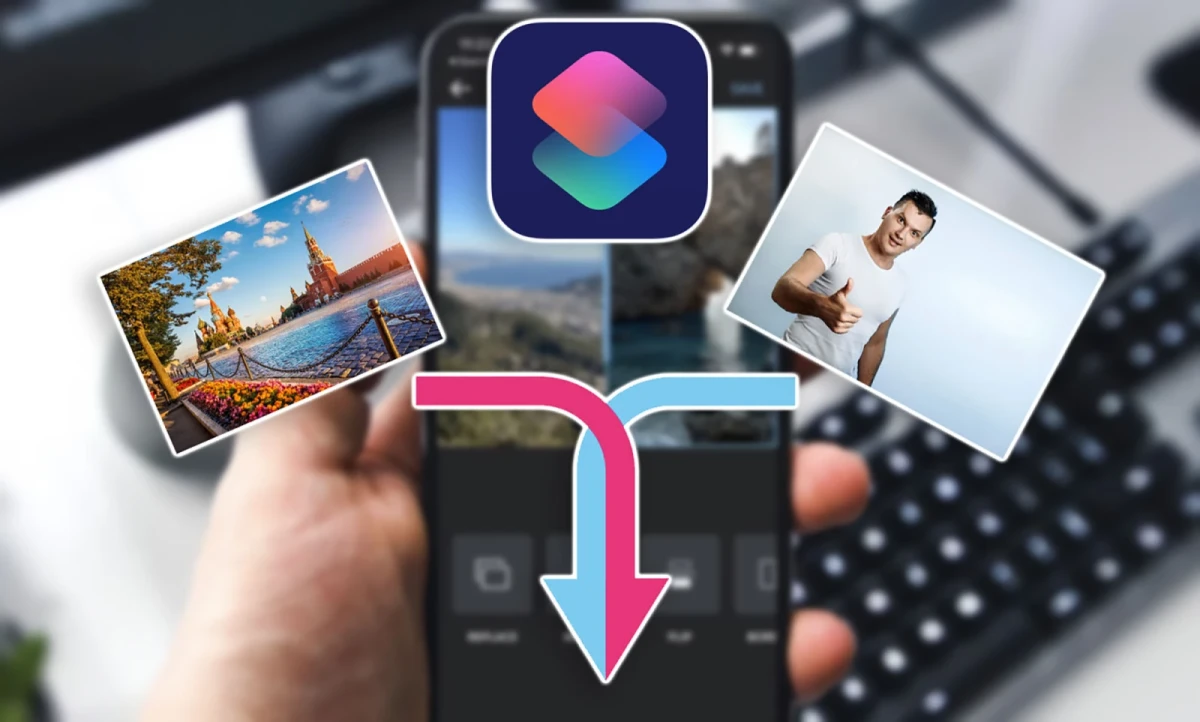
There are several ways to combine two photos: place them side by side, overlay one on top of the other, or save them as pages in a single PDF document. You do not have to install Photoshop to do this: iPhone, Android, and Windows have built-in tools that can handle most tasks. Here is how to choose the right option and when to turn to AI.
How to join two photos side by side
The easiest way to combine photos is to place them side by side or one above the other. This lets you compare photos taken before and after a renovation, show both sides of a document, or put several shots together in a collage.
Before joining the images, check their aspect ratios. If one photo is vertical and the other horizontal, their heights may differ, leaving empty margins around the edges. To avoid this, crop the photos to the same aspect ratio beforehand, such as 3:4.
On iPhone
On iPhone, you can create a collage using the Shortcuts app. You only need to set up the sequence of actions once, and then you can combine photos in just a few taps:
1. Open Shortcuts and tap the “+” icon.
2. Choose “Add Action,” find the “Select Photos” action, and enable “Select Multiple.”
3. Add the “Combine Images” action.
4. Use the action search to find and add the action for saving the result to Photos.
5. Tap “Done.”
In the combine settings, you can choose how to arrange the photos: horizontally, vertically, or in a grid. You can also set the spacing between images in pixels.
On Android
On Android, the easiest way to make a collage is with Google Photos. The app is also available on iPhones running iOS 18 or later.
1. Open Google Photos and go to the “Create” section.
2. Choose “Collage” and select two photos.
3. Pick a template and frame.
4. Tap “Save.”
You can combine up to six photos in the mobile version and up to nine in the web version. Samsung smartphones offer another option: select the photos you want in the default Gallery app, tap “Create,” and choose “Collage.”
On Windows
On Windows 11, the default Paint editor is suitable for joining photos. It lets you combine images on a single canvas without installing additional software.
1. Open the first photo in Paint.
2. Drag the handle in the bottom-right corner of the canvas to make room for the second photo.
3. Open the second photo in a separate Paint window, press Ctrl+A, then Ctrl+C.
4. Return to the first image and paste the copied photo using Ctrl+V.
5. Drag the photo into the empty space, crop away the excess canvas, and save the result.
PNG is the better format for saving: unlike JPEG, it does not use lossy compression. This is especially useful for images containing text, sharp edges, and high-contrast details.
How to overlay one photo on another
If you need to do more than place two photos side by side and want to combine them into a single scene, layers are useful. For example, you can move a person onto a different background or add an object from one photo to another.
Layers work like transparent sheets stacked on top of one another. The bottom layer usually serves as the background, while the top layer can be moved, resized, and edited independently.
Paint for Windows 11 has a “Layers” panel that lets you add a new layer and place the second photo on it. Automatic background removal is also available. The program tries to identify the main subject, such as a person, and remove everything around it.
In Photoshop, use “File” → “Place Embedded” to add the second photo as a separate layer. To hide unwanted areas, you can use a layer mask. It conceals unwanted parts without deleting the original pixels, so you can adjust the image boundaries even after creating the composite.
Photoshop is a paid application, and its capabilities may be excessive for a one-off photo combination. On Windows, Paint is sufficient, while on a smartphone you can try AI tools for more complex compositing.
How to combine two photos into one PDF
If you need to send photos as documents—for example, images of both sides of a certificate, receipts, or pages of a contract—it is better not to join them into a single image. Creating a PDF with each photo on a separate page is much more convenient.
This way, the photos will not need to be shrunk to fit the width of a single sheet when printed, and small text will remain more readable.
On iPhone
On iPhone, you can create a PDF using the default Files app:
1. Open Photos, select both images, and tap “Share.”
2. Choose “Save to Files.”
3. Open Files, tap “Select,” and select the saved images.
4. Tap the three dots in the corner of the screen and choose “Create PDF.”
There is another way: select the photos in the Photos app, tap “Share” → “Print,” then spread two fingers apart on the thumbnail in the preview window. This opens a PDF that you can save or send.
On Windows
On a computer, you can use the Microsoft Print to PDF virtual printer. It turns a standard print command into the creation of a PDF file.
1. Open File Explorer and select both photos while holding Ctrl.
2. Right-click and choose “Print.” In some Windows 11 builds, this option is under “Show more options.”
3. Select Microsoft Print to PDF from the list of printers.
4. Choose a suitable layout and check the image-fitting settings. If preserving the edges of the photos is important, disable the automatic “Fit picture to frame” option, which may crop them.
5. Click “Print,” enter a file name, and choose a folder to save it in.
On Android and in a browser
On Android, you can use the iLovePDF online service. In the “JPG to PDF” section, upload your photos, arrange them in the desired order, and enable the option to merge them into a single document.
However, there is an important limitation: the photos must be uploaded to a third-party server for conversion. If the photos contain passport details, addresses, medical information, or other confidential data, it is safer to use a local tool on your computer.
How to combine two photos using AI
AI tools are suited to a different task: not simply joining two source images, but creating a new scene based on them. For example, you can ask the tool to add a person from one photo to the interior shown in another, or place two people together even though they were originally photographed separately.
The source material suggests using Yandex’s Alice AI for this.
The steps are as follows:
1. Open the Alice AI app, the Yandex app with Alice, or Yandex Browser.
2. Go to the “Studio” section and open the “Combine” tab.
3. Upload two photos in JPEG or PNG format. Each file must be no larger than 20 MB.
4. Describe your desired composition: specify the background, lighting, and positioning of the people, or choose a ready-made template.
5. Tap the arrow and wait for the result. You can download the finished image from the “My Creations” section.
Important: you must start the combining process through “Studio.” In a regular chat, Alice accepts only one photo at a time. If the “Combine” tab is not displayed, try updating and restarting the app.
The AI-based method has a fundamental limitation. A generative model does not cut a person out of one photo and transfer their original pixels onto another background. It analyzes both photos and redraws the scene. As a result, the output may resemble the originals, but it will not be an exact copy: facial features, hairstyles, clothing details, or other aspects of a person’s appearance may change. Generating the image again may also produce a different result.
To reduce discrepancies, upload clear photos with similar lighting and explicitly ask the AI not to change the faces. However, even this instruction does not guarantee an exact match.
If people’s appearances must remain unchanged, AI is not the right tool. In that case, it is better to use layers and masks in an image editor.
Which method to choose
It all depends on the result you want:
· Two photos side by side: use a collage in Google Photos, Shortcuts on iPhone, or Paint on Windows.
· An object placed against the background of another photo: work with layers in Paint or Photoshop.
· Two photos in one document: create a PDF so that each photo occupies its own page.
· A new shared scene based on two source images: try AI, but keep in mind that it will redraw the images.
The key is not to confuse joining, compositing, and generation. If you need to preserve the original photos, a standard editor is enough. If you want a new composition, you can turn to AI. And for documents, PDF is almost always more convenient.