make preferable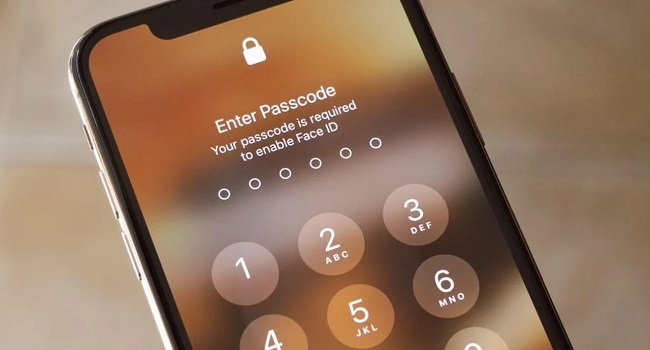
Recently, the editors at NEWS.am Tech explained how to unlock an Android smartphone if you forget its password. But what about an iPhone? Unlike Android, which offers various unlocking methods, iPhone users have just one option: resetting the device to factory settings. Fortunately, there are multiple ways to perform this reset, each suited to specific situations.
Method 1: “Erase iPhone” Feature
This is the simplest and fastest method if your iPhone is running iOS 15.2 or later. Here’s how:
- Enter an incorrect passcode several times until the screen displays “iPhone Unavailable.”
- Tap “Erase iPhone” at the bottom of the screen.
- Enter your Apple ID credentials to confirm the data wipe.
- After this, the device will reset to factory settings, allowing you to set it up anew.
Method 2: Via iCloud (If “Find My iPhone” Is Enabled)
If “Find My iPhone” is activated on your device, you can reset it remotely:
- Visit iCloud.com on a computer or another device.
- Sign in with your Apple ID and open the “Find My” app.
- Locate your device in the list and select “Erase iPhone.”
- This method is handy if you don’t have physical access to the phone, but it only works if “Find My iPhone” was previously enabled.
Method 3: Via iTunes or Finder (Works Every Time)
This approach is compatible with all iOS versions and doesn’t require prior setup. However, you’ll need a computer with iTunes (Windows) or Finder (Mac).
Steps:
- Turn off your iPhone by holding the volume down button and side button together.
- Connect the device to the computer via cable while holding the side button.
- Release the button when the recovery mode icon appears on the screen.
- Open iTunes (or Finder on a Mac), select your connected iPhone, and click “Restore.”
- Wait for the process to complete.
- Once finished, the iPhone will reset to factory settings and be ready for a fresh setup.
In Summary…
Unlocking an iPhone without a password is possible, but it requires a full reset. The most convenient option is the “Erase iPhone” feature directly from the lock screen, though it’s only available on newer iOS versions. iCloud and iTunes/Finder are versatile alternatives, but they depend on an activated “Find My iPhone” or access to a computer, respectively.
To avoid this hassle in the future, store your password in a secure place or enable Face ID/Touch ID!