make preferable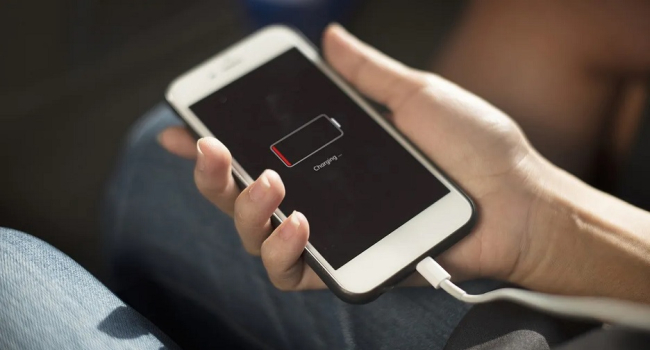
Most modern smartphones are equipped with rather modest batteries, the capacity of which usually lasts an average of one day, or even less. To get the most out of your device and avoid charging it too often, there are a few simple steps you can take to optimize battery usage.
Adjust Screen Brightness and Timeout Settings
One of the most significant contributors to battery drain is the screen. Lowering the screen brightness to a comfortable level conserves battery power. Additionally, reducing the screen timeout duration ensures that the display turns off promptly when not in use, saving precious battery life.
Manage Background App Refresh
Many apps run in the background, periodically refreshing and consuming battery power. Review your device's settings to manage background app refresh. Disable or limit background refresh for apps that you don't frequently use or those that don't require real-time updates.
Control Location Services
Location services, while useful for certain apps, can drain battery life by constantly accessing GPS and other sensors. Adjust the location settings to be more selective.
Use Wi-Fi Instead of Cellular Data
When available, connect to Wi-Fi networks instead of relying solely on cellular data. Wi-Fi consumes less power for data transfer, reducing the strain on your battery. Remember to turn off Wi-Fi when not in use to prevent continuous scanning for networks, which can drain battery life.
Disable Unnecessary Push Notifications
Push notifications can be convenient, but they also contribute to battery drain. Review your app settings and disable push notifications for apps that are not critical or don't require immediate attention. This will help minimize background activity and prolong battery life.
Enable Battery Optimization Features
Smartphones often come with built-in battery optimization features that can significantly extend battery life. Explore your device's settings and enable features like "Battery Saver," "Power Saving Mode," or "Low Power Mode." These settings usually limit background activity, reduce performance, and adjust system settings to conserve power.
Monitor and Manage Battery Usage
Take advantage of your device's battery usage statistics to identify power-hungry apps and services. In the settings menu, you can view a breakdown of battery usage by app. If you notice any particularly power-intensive apps, consider optimizing their settings or limiting their usage to preserve battery life.
Update Apps and Operating System
App and system updates often include optimizations and bug fixes that can enhance battery efficiency. Stay up to date with the latest software updates for both your apps and operating system. These updates may include battery-saving enhancements and overall performance improvements.
Disable Unused Connectivity Features
Bluetooth, NFC, and Wi-Fi hotspot features consume battery power when enabled. Disable these connectivity features when not in use to conserve battery life. Additionally, turning off unnecessary synchronization or auto-sync options for apps and accounts can reduce battery drain.
Limit Widgets and Live Wallpapers
Widgets and live wallpapers may provide interactive and visually appealing features, but they can drain battery life by constantly running in the background. Keep widget usage minimal and opt for static wallpapers to minimize battery consumption.