make preferable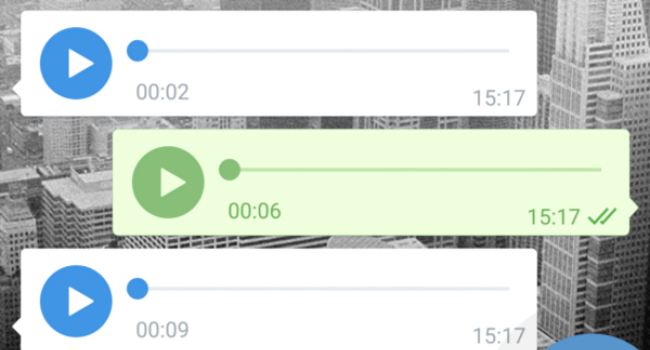
Voice messages in Telegram are a convenient way to communicate, but they are not as easy to save as text, which can be quickly copied into notes. If you received important information or just a funny “voice note,” you can download it for storage or later use. Telegram Premium subscribers can transcribe voice messages into text, but this is a paid feature. Here we explain how to download voice messages in the .ogg format to any device for free.
The .ogg format: what it is and how to open it
Voice messages in Telegram are saved in the .ogg format — popular for audio files in messengers, game soundtracks, and internet radio. Android and PC play .ogg “out of the box,” but iPhone requires a third-party player, such as the free VLC Media Player available in the App Store.
How to download a voice message on Android
There’s no direct download of voice messages in Telegram on Android, but there are two working methods:
Method 1: via the “Share” function
- Open the chat with the voice message you need.
- Hold your finger on the message until a menu appears, and select “Share.”
- In the list, choose “Saved Messages” or send the file to your email.
- Download the .ogg file from the email or from the “Saved Messages” chat.
Method 2: via the file manager
- Fully play the voice message so it loads into the cache.
- Close Telegram and open the file manager (for example, “Files” on Samsung).
- Go to the folder Telegram → Telegram Audio in the device’s internal memory.
- Find the .ogg file you need (the name will be random, so use date and size as reference) and copy it to a convenient location.
How to download a voice message on iPhone
On iOS, the process is easier thanks to the built-in save function:
- Open the chat with the voice message.
- Hold the message and tap “Select.”
- Tap the “Share” icon (square with an upward arrow).
- Choose “Save to Files.”
- Select a folder (for example, “iCloud Drive” or “On My iPhone”) and tap “Save” in the upper-right corner.
To play .ogg on iPhone, install VLC Media Player or a similar player from the App Store, since the built-in iOS player does not support this format.
How to download a voice message on PC
Downloading on a computer is the easiest way:
- Open Telegram (in the browser or the app) and find the needed voice message.
- Right-click it and select “Save As...”
- Choose a folder on your disk and click “Save.”
For macOS, the process is identical: right-click → Save As... → choose folder. However, without an installed player (such as VLC), macOS will not play the .ogg file directly.
Useful tips
• Check the cache: On Android, voice messages are stored in the Telegram cache until you clear it. If the file is missing, try playing the message again.
• Format conversion: If .ogg is inconvenient, use online converters (for example, CloudConvert) to convert to .mp3 or .wav.
• Backup: Save important voice messages in the cloud (Google Drive, iCloud) or on an external drive so they aren’t lost.
• Players: VLC Media Player is a universal solution for all platforms, free and without ads.
In short...
Telegram voice messages (.ogg) are easy to download: on Android — via “Share” or the Telegram Audio folder, on iPhone — via “Save to Files,” on PC — with right-click and “Save As...”. For iOS and macOS, a player like VLC is needed since .ogg isn’t supported “out of the box.”