


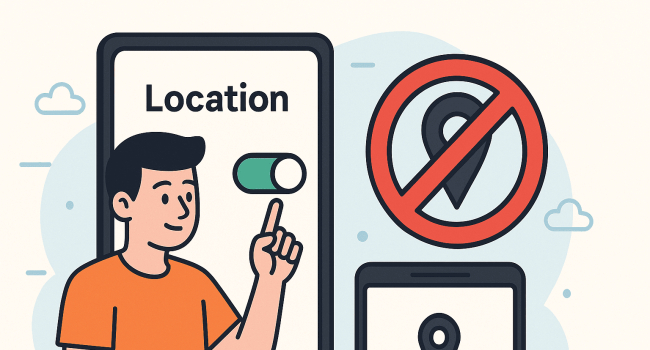
How to turn off location services on your phone: Step-by-step guide for iPhone and Android
Location services are a useful feature, but they can significantly drain battery life and may allow apps to collect more data than necessary. If you want to save battery power or limit access to your location, you can either turn location services off completely or configure them individually for each app.
How to Turn Off Location Services on Android
The fastest way:
- Swipe down from the top edge of the screen to open the notification panel.
- Find the Location icon and tap it to turn location services off.
Through Settings:
- Open Settings on your phone.
- Go to Location.
- Toggle Location services to Off.
How to Turn Off Location Services on iPhone
- Open Settings.
- Go to Privacy & Security → Location Services.
- Turn the main Location Services switch to Off.
How to Turn Off Location Services for Individual Apps
Completely disabling location services is not always convenient. It is often better to allow access only to apps that truly need it, such as maps, navigation, delivery, or weather apps.
On Android:
- Open Settings → Security & Privacy → Privacy Settings → Permission Manager → Location.
- You will see a list of apps that have access to your location.
- Tap the desired app and choose one of the following options:
- Allow all the time (constant access);
- Allow only while using the app;
- Ask every time;
- Don’t allow.
On iPhone:
- Go to Settings → Privacy & Security → Location Services.
- Find the app you want in the list.
- Choose one of the following options:
- Never (completely block access);
- Ask Next Time or When I Share;
- While Using the App;
- Always.
Helpful Tips
- Regularly check the list of apps that have access to your location—many apps request it “just in case.”
- If you are concerned about privacy, choose While Using the App or Ask Every Time whenever possible.
- Turning off location services can noticeably extend battery life, especially if you frequently use maps or navigation.
In Brief
You can disable location services on your phone in just a few seconds using the notification panel or the settings menu. On Android, this is done in the Location section, while on iPhone it is found under Privacy & Security → Location Services. It is not necessary to disable the feature completely—configuring access individually for each app is often more convenient. This approach helps save battery life and maintain control over your personal data. Regularly reviewing permissions is a simple but effective step for improving both privacy and energy efficiency.
- Related News
- WhatsApp to introduce full passwords instead of PIN codes
- Google now forces a 24-hour wait before APK installation: Android’s new defense against malware
- Expert explains why smartphone storage quietly fills up
- WhatsApp may soon automatically sort business messages into a separate folder
- What are some lesser-known ways to clear storage on Android smartphones?
- A full-fledged DLSS equivalent is coming to smartphones
- Tech Jobs
- Most read
month
week
day
- DeepSeek or ChatGPT: Which is better in 2026? 1227
- Cosmonaut Harutyun Kiviryan passes pre-flight exam on ISS simulator 702
- Anthropic teaches AI to control real-world machines 682
- Scientists have learned to transmit data by laser through atmospheric disturbances 676
- Beijing opens "Kindergarten" for robots: Machines learn from their own mistakes 660
- BepiColombo begins arrival at Mercury after nearly eight years of flight 654
- What will happen to the human body on Mars? 642
- Do white holes exist, and what does the Big Bang have to do with it? 610
- Dark matter detector captures the weakest neutrinos ever detected 589
- What Claude can do: A complete overview of one of the most popular AI assistants 584
- Archive