


How to clean a desktop PC from dust: A simple guide for those afraid of screwdrivers
If your computer has started sounding like an airplane, shutting down unexpectedly, or lagging even in a browser, dust is responsible in 90% of cases. Cleaning a PC is not rocket science — it’s basic maintenance that extends hardware lifespan and saves money on upgrades. You should do it every 6–12 months, and the whole process takes 15–30 minutes. Here’s a step-by-step guide for beginners.
Why Dust Is a Computer’s Worst Enemy
Every component inside heats up and cools down using air pushed by fans through radiators. Dust clogs the radiator fins, airflow weakens, temperatures rise, and the CPU and GPU start throttling. This leads to lag, visual artifacts, restarts, and in severe cases — hardware failure.
Signs It’s Time to Clean Your PC
- Fans sound like a turbine even at idle.
- The case feels hot to the touch.
- Sudden shutdowns or BSODs.
- CPU/GPU temperatures exceeding 85–90 °C during gaming (you can check using HWMonitor or MSI Afterburner).
What You’ll Need
- A screwdriver (usually a PH1/PH2 crosshead).
- A can of compressed air.
- A soft brush or antistatic brush.
- A vacuum cleaner with a narrow nozzle (or simply running nearby).
- Alcohol-free wet wipes.
Step-by-Step Cleaning
- Turn off the computer, unplug the power cable, and disconnect all devices.
- Remove the side panel (typically two screws on the back or tool-less latches — slide it back and lift off).
- Use a vacuum cleaner on low power to pick up large dust clumps and pet hair from the filters.
- Blow out radiators and fans with compressed air. Hold each fan still with your hand so it doesn’t spin too fast — this can damage the bearings.
- Pay special attention to:
- the CPU cooler (the largest heatsink),
- the graphics card (remove its shroud if it has one),
- the power supply (blow through the rear and bottom vents).
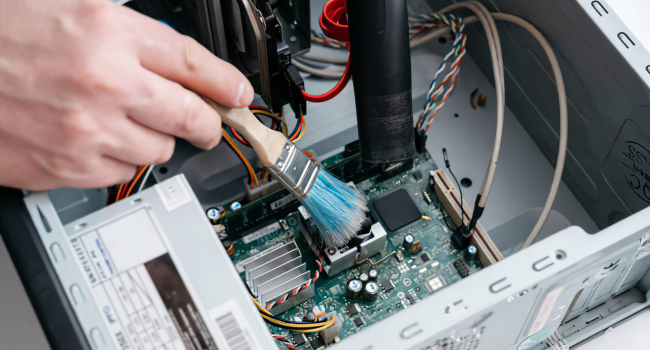
- Use a brush to remove dust from the motherboard and hard-to-reach areas.
- Wipe external dust filters with a wet wipe.
- Reassemble everything.
How to Protect Your PC from Dust
- Place the PC higher — on a desk or stand instead of on the floor.
- Vacuum the room regularly and clean the case filters.
- If you have a lot of dust, install magnetic dust filters on intake fans.
- Every 3–4 months, simply remove the side panel and blow the inside with compressed air — easy preventive care.
If Cleaning Didn’t Help
Check temperatures in HWMonitor. If the CPU still sits above 90 °C at idle, or the GPU above 85 °C during gaming, it’s time to replace the thermal paste. This is more advanced but still doable: about 20 minutes of work and ~300 rubles worth of materials.
In Short
You should clean your desktop PC every 6–12 months — a 15-minute task that protects the hardware from overheating and extends its lifespan for years. The main goal is to blow out the radiators and fans with compressed air and prevent dust buildup on filters. If temperatures remain high afterward, replace the thermal paste. And yes — lifting the PC at least 10 cm off the floor drastically reduces dust intake.
- Related News
- Samsung unveils monitor with record-breaking 1100 Hz refresh rate
- How to recover a corrupted USB flash drive: A practical guide
- Memory shortage hits the budget market: Why are smartphones under $100 disappearing from the market?
- Expert explains why smartphone storage quietly fills up
- How much RAM do you really need for gaming in 2026
- A full-fledged DLSS equivalent is coming to smartphones
- Tech Jobs
- Most read
month
week
day
- Two comets will be visible in Autumn 2026 1250
- DeepSeek or ChatGPT: Which is better in 2026? 1021
- NASA successfully launches Nancy Grace Roman space telescope – "Hubble's successor" 666
- Anthropic teaches AI to control real-world machines 648
- New Apple CEO to refresh top management team: What we know 632
- Cosmonaut Harutyun Kiviryan passes pre-flight exam on ISS simulator 619
- Scientists have learned to transmit data by laser through atmospheric disturbances 618
- Beijing opens "Kindergarten" for robots: Machines learn from their own mistakes 597
- What will happen to the human body on Mars? 583
- Dark matter detector captures the weakest neutrinos ever detected 543
- Archive