


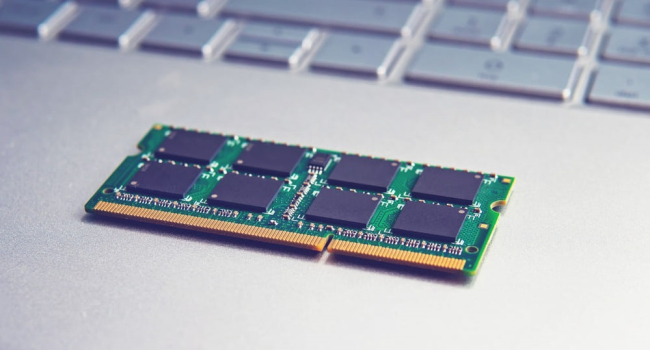
How to free up RAM on a Windows computer: 5 simple methods
Random Access Memory (RAM) is a key component of any computer, ensuring fast performance by allowing rapid data exchange between the processor and storage. However, on older PCs or laptops with limited RAM (for example, 4–8 GB), memory can quickly fill up, causing the system to slow down. Buying additional RAM modules is an effective solution (see our guide on how to do this), but what if you need to speed up your computer right now? Here are five software-based ways to free up RAM in Windows.
- End Unnecessary Processes
Every program you run creates processes that occupy RAM. Some of them continue to work in the background, even if you’re not actively using the app. To free up memory:
- Press Ctrl + Alt + Delete and select Task Manager (or press Ctrl + Shift + Esc).
- Go to the Processes tab and review the list of active processes.
- Find unnecessary ones, such as software update services (e.g., Adobe, Steam) or tray apps you don’t use.
- Right-click the process and select End Task.
Warning: Do not end Windows system processes (such as explorer.exe or svchost.exe), as this may disrupt your OS.
Result: Ending unneeded processes can free up tens or even hundreds of megabytes of RAM, especially if many background apps are running.
- Disable Startup Programs
Many applications automatically launch when the computer starts, occupying RAM in the background. Third-party software (e.g., messengers or cloud services) often adds itself to startup without your knowledge.
How to disable startup programs:
- Click Start → type Startup → select Startup Apps.
- Review the list and disable unnecessary programs by toggling them off.
- Leave only essential ones, like antivirus software or drivers.
Tip: Disable messengers (such as Discord, Telegram) or cloud services (Google Drive, Dropbox) if you don’t use them constantly.
Result: Fewer startup programs reduce RAM load right after boot.
- Turn Off Unnecessary Windows Services
Windows services are background processes that run independently of your actions and consume RAM. Some, like Bluetooth services or automatic driver updates, may not be needed.
How to disable services:
- Click Start → type Services → open Services.
- Review the list and find those tied to unused features (e.g., Bluetooth Support Service if you don’t use Bluetooth).
- Right-click the service → Properties → set Startup type to Disabled → Apply → OK.
Warning: Only disable services whose purpose you understand. Turning off critical ones may cause system instability.
Result: Disabling unneeded services can free up a small amount of RAM, especially on older systems.
- Close Extra Browser Tabs
Modern browsers like Google Chrome are heavy on RAM usage, especially with many open tabs. Each tab (including pinned ones) can use 50–200 MB.
How to optimize browser memory usage:
- Close unused tabs, keeping only the necessary ones.
- Disable pinned tabs in browser settings so they don’t auto-load.
- Use extensions such as The Great Suspender or OneTab, which suspend inactive tabs to save RAM.
Tip: If you often work with dozens of tabs, try browsers that use less memory, such as Microsoft Edge or Firefox.
Result: Closing 10–20 tabs can free up 1–2 GB of RAM, greatly boosting performance.
- Use RAM Cleaning Utilities
If you don’t want to manually end processes or services, you can use specialized utilities to clean RAM. These tools automatically find and clear unnecessary data, freeing memory.
Recommended tool: KCleaner
- Download KCleaner from the official site (kcsoftwares.com).
- Install and run it.
- Click Clean — the utility will automatically free up memory.
Alternatives: CCleaner, Wise Memory Optimizer, Razer Cortex.
Note: Automatic RAM cleaners don’t replace closing browser tabs or disabling startup apps. Avoid suspicious tools, as they may contain malware.
Result: Utilities can free 100–500 MB of RAM, depending on system load.
When Software Fixes Aren’t Enough
If your PC is still slow after these steps, possible reasons include:
- Insufficient RAM: 4–8 GB may not be enough for modern tasks. Consider adding more modules (see our RAM upgrade guide).
- Outdated hardware: A slow CPU or HDD instead of SSD can bottleneck performance.
- Viruses or bloatware: Run a scan with Windows Defender or Malwarebytes and uninstall unnecessary software.
Extra Tips
- Restart the system: Rebooting Windows clears accumulated processes from RAM.
- Use an SSD: Replacing an HDD with an SSD speeds up the system and reduces memory strain.
- Update Windows: Updates often improve memory management.
- Monitor RAM usage: Use Task Manager or Resource Monitor to track memory in real time.
In Summary
You can free up RAM on a Windows computer without buying new hardware. End unnecessary processes in Task Manager, disable startup apps, turn off unused services, close extra browser tabs, and use tools like KCleaner for automated cleanup. These methods can free up several hundred megabytes—or even gigabytes—of RAM, making your system noticeably faster. If problems persist, consider a RAM upgrade or hardware check. By following these tips, you can keep your computer running smoothly even under heavy loads.
- Related News
- Samsung unveils monitor with record-breaking 1100 Hz refresh rate
- How to recover a corrupted USB flash drive: A practical guide
- Memory shortage hits the budget market: Why are smartphones under $100 disappearing from the market?
- Expert explains why smartphone storage quietly fills up
- How much RAM do you really need for gaming in 2026
- A full-fledged DLSS equivalent is coming to smartphones
- Tech Jobs
- Most read
month
week
day
- Two comets will be visible in Autumn 2026 1258
- DeepSeek or ChatGPT: Which is better in 2026? 1037
- NASA successfully launches Nancy Grace Roman space telescope – "Hubble's successor" 666
- Anthropic teaches AI to control real-world machines 650
- New Apple CEO to refresh top management team: What we know 634
- Scientists have learned to transmit data by laser through atmospheric disturbances 622
- Cosmonaut Harutyun Kiviryan passes pre-flight exam on ISS simulator 622
- Beijing opens "Kindergarten" for robots: Machines learn from their own mistakes 602
- What will happen to the human body on Mars? 587
- Dark matter detector captures the weakest neutrinos ever detected 549
- Archive